



Designing leavers hoodies is a staple for custom apparel businesses.
One of the most popular requests is fitting an entire class list into the graduation year digits (like a “26” or “25”).
While it looks complex. But using the right “Text-to-Path” and “Envelope” techniques in CorelDraw makes it seamless.
In short blog I am going to teach you the professional workflow. So that you can populate shapes with text. Meanwhile ensuring a clean, fully-justified look that is ready for printing.
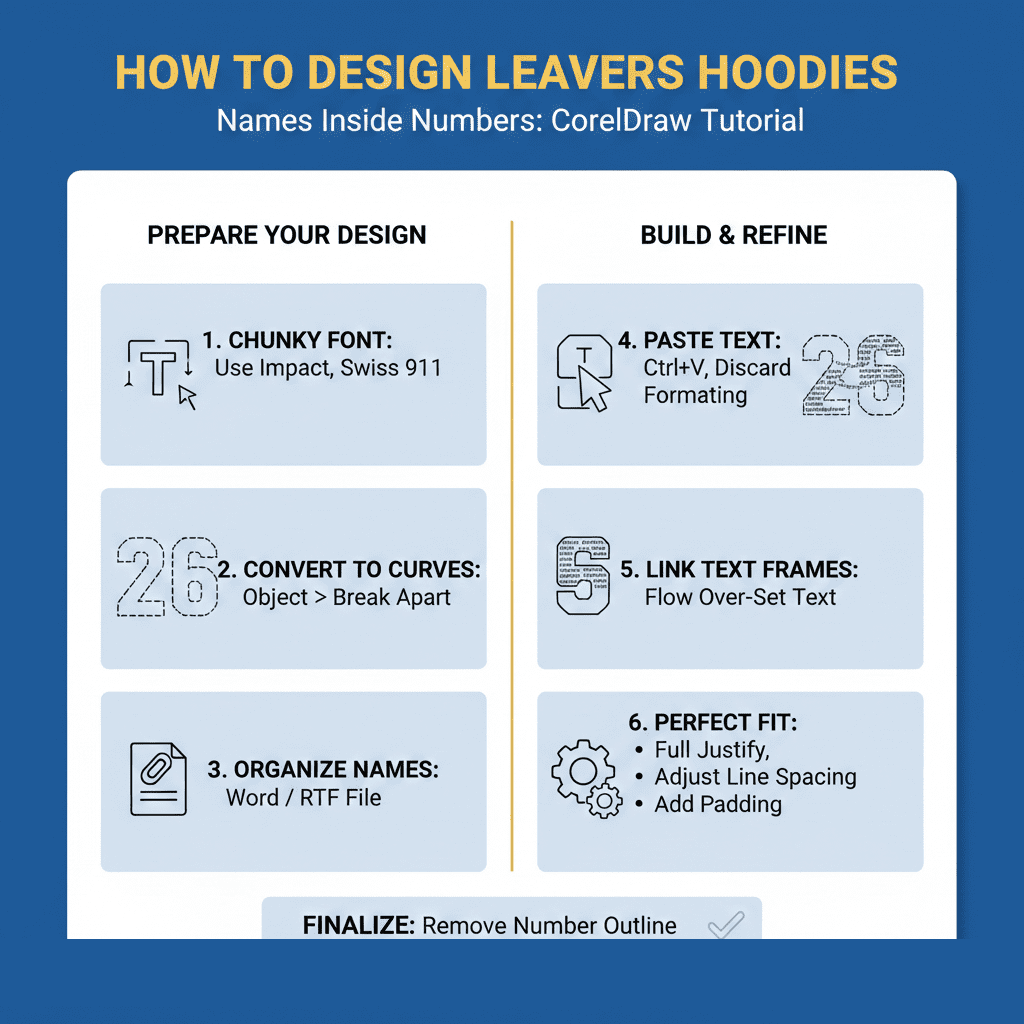
Designing Leavers Hoodies Requirements for Name-Filled Numbers
| Element | Recommendation | Why it Matters |
| Font Selection | Chunky, Bold Typefaces (e.g., Impact, Swiss 911) | Provides more surface area for the names to sit inside. |
| Font Style | Sans-Serif (e.g., Fira, Arial) | Easier to read at small sizes once printed on fabric. |
| Formatting | Full or Force Justification | Ensures the names touch the edges of the numbers for a clean silhouette. |
| Source File | Clean Word or RTF document | Prevents “hidden” formatting codes from breaking your text flow. |
5 step designing leavers hoodies
1. Prepare Your Base Numbers
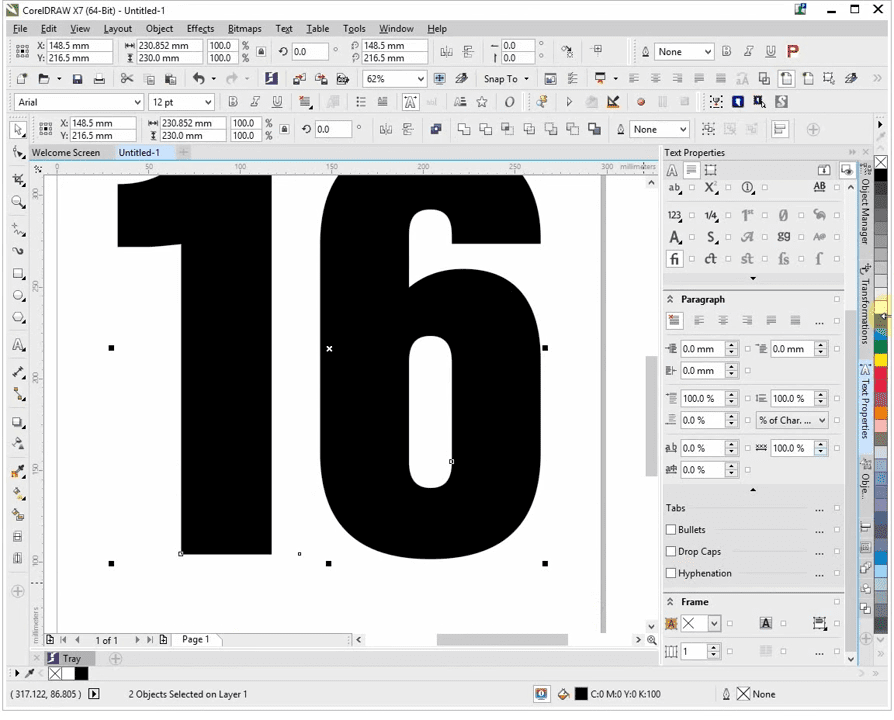
Start by typing your year (e.g., “26”). Use a heavy, “artistic text” font like Swiss 911 or any chunky typeface.
- Go to Object > Break Apart to separate the digits.
- Select the numbers, right-click, and select Convert to Curves.
- Pro Tip: Set the fill to white and the outline to black so you can clearly see the boundary of your work area
2. Import Your Class List
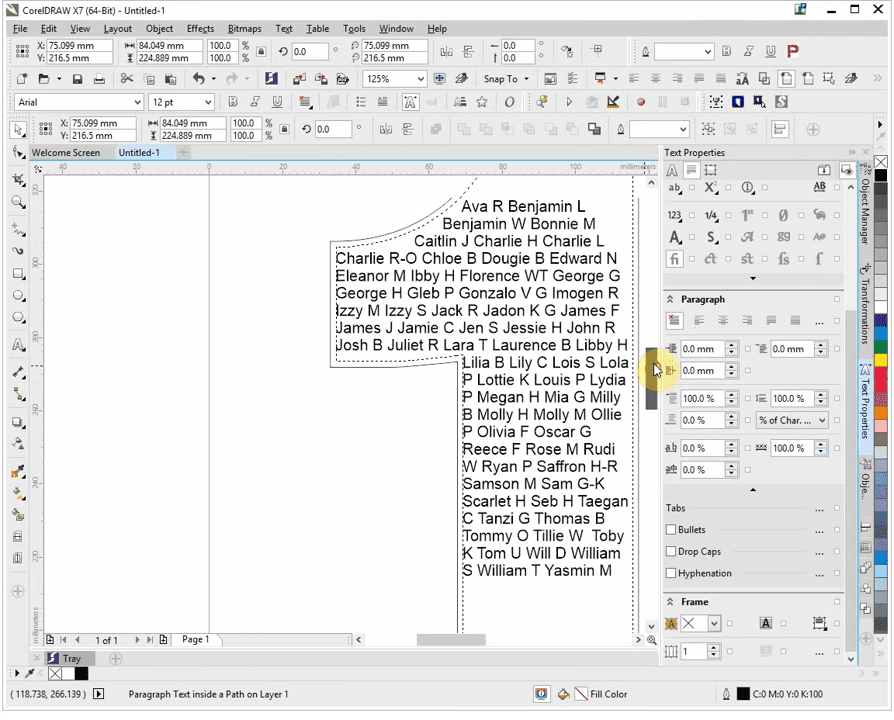
Ensure your names are ready in a document.
- Select the Text Tool.
- Hover over the inside of your first digit until the cursor changes to a rectangle with “AB” inside.
- Left-click to create a text frame within the shape.
- Paste (Ctrl + V) your names. When prompted, select “Discard fonts and formatting” to keep the text clean.
3. Flowing Text Between Numbers
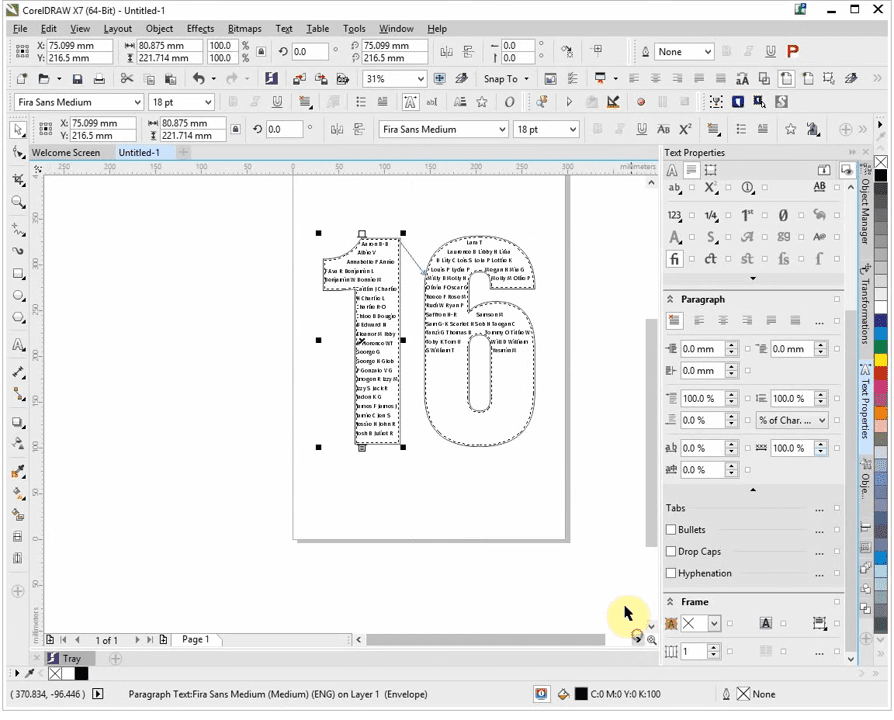
- Drag the cursor to the second number until it turns into an arrow.
- Click to “link” the frames. The remaining names will now automatically flow into the next digit.
4. Fine-Tuning for the Perfect Fit
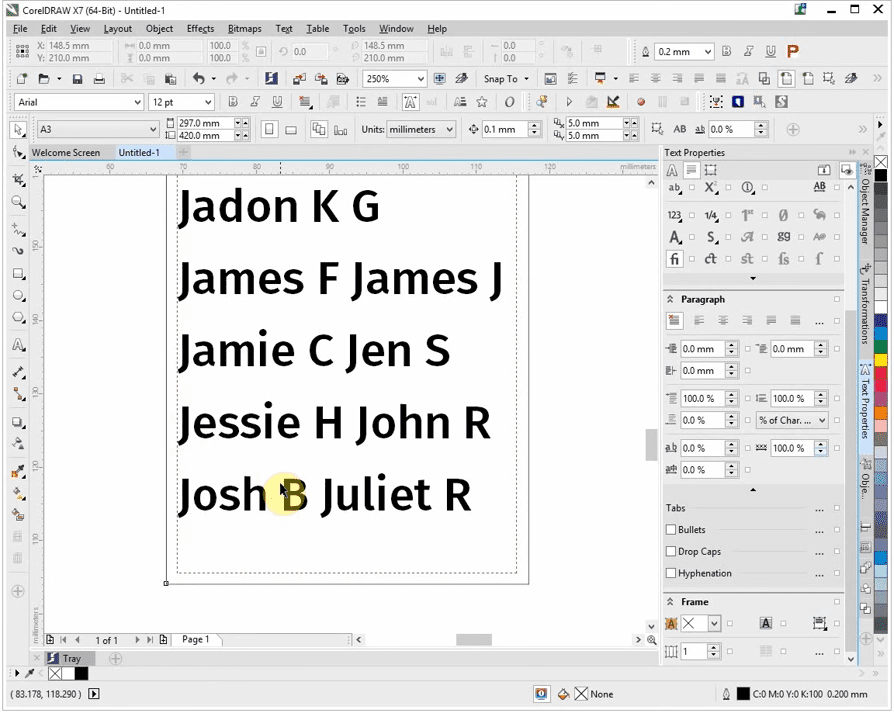
To make the design look professional, you must eliminate “white space” and ensure no names are cut off.
- Justification: Open Text Properties and set the alignment to Full Justify or Force Justify. This pushes the text to the very edges of the number’s silhouette.
- Line Spacing: If the last name is missing, go to the Paragraph section and slightly reduce the Line Spacing. This brings the names closer together vertically.
- Padding: If there are small gaps at the bottom, you can manually add extra spaces between names to “pad out” the shape.
5. Finalizing for Production
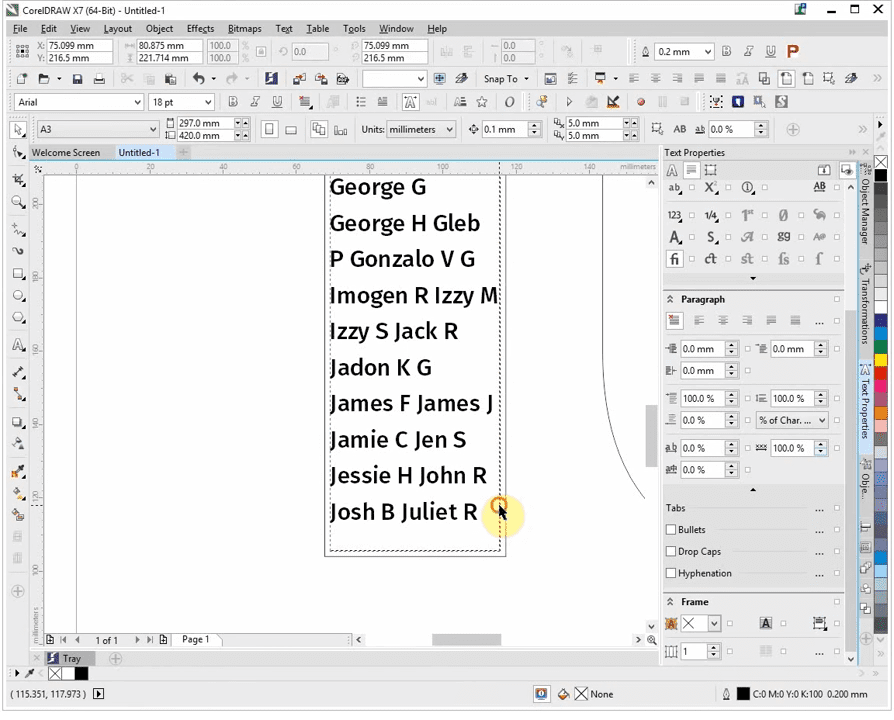
Once the names fill the numbers perfectly:
- Select the original container shapes (the numbers).
- Right-click the “No Outline” swatch in your color palette.
- This leaves you with names perfectly formed into the shape of the digits, ready for DTF or screen printing.
Key Troubleshooting Tips for School Leavers Designs
- Missing Names: Always check the very end of your text flow. If the last frame is red, your font size is too large or your line spacing is too wide.
- Legibility: For hoodies, try to keep the font size around 18pt to 22pt. Anything smaller may blur during the printing process.
- Software Compatibility: While this guide uses CorelDraw X7, these steps are foundational and work similarly in newer versions like CorelDraw 2024.
Check out tips on building a successful leavers hoodies business
Check out how to master 2026 leavers hoodies

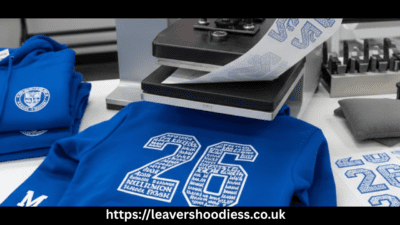

[…] Another option is to create a large graphic representing your school, town or year group.Learn to fit a class list inside year numbers […]